
10 Best Online Screen Recorder Tools 2024 [Free & Premium]
Are you a content creator who needs to record your screen activities for any reason?
If so, you’ll want to check out these 10 best online screen recorder tools. Each one has its own unique features that make it stand out from the rest.
So, whether you’re looking for something free or premium, I’m confident that one of these tools will meet your needs.
So stay tuned and find your best suit!
Best Online Screen Recorder Tools
The growing demand for content at a distance has made many people look for a screen recorder for their creations. Knowing the right tools for this is essential, as it simplifies the entire creation process.
Recorders are software that allows you to capture the screen of your devices while performing the normal functions of your device. At the end of the capture, the recording is saved in video format for you to edit and share.
Some recorder tools allow you to choose whether to capture the screen completely or just an area of it. It is also possible to add other captures, such as the audio from your computer system, microphone, and webcam.
There are a group of options to choose from, free and paid, with advantages and disadvantages. Therefore, it is necessary to assess which one gathers everything you need according to the content you seek to produce.
In this article below, I will list the 10 best online screen recorder tools that have a screen recorder function so that you can take captures on your computer without downloading a program.
Read Also: How to convert MP3 to YouTube Videos
1. RecordCast Screen Recorder
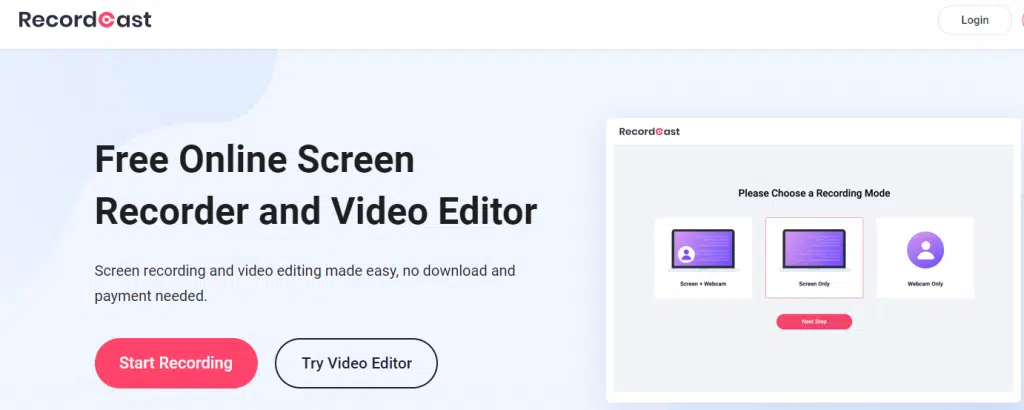
RecordCast Screen Recorder is quite simple, but it is still a mighty recorder, having the ability to capture a browser tab, the entire screen, or just a specific application window.
You can also record your webcam only. If you are going to capture your screen together with the webcam, it allows you to position the webcam thumbnail anywhere you want. The use of an external microphone is also allowed.
The application contains tools for video editing such as splitting, adding text captions, adding various elements, and overlays, combining the image with videos, zooming in /out, copy&paste, deleting, etc.
Besides, it is totally free of charge to access all the features of the tool. I see it is HTML5 based so that the video project can be stored under the users’ accounts without saving the users’ video resources, so you don’t need to worry about your user privacy.
With RecordCast Screen Recorder, you don’t need to download even a launcher or a plugin on your browser. And there is no watermark and ad to use for free. This is why I list it in the first place.
Who is The Perfect Suit for RecordCast Screen Recorder?
It is easy-to-use recording software that anyone who works with video can use. You can use it in a number of ways. The most popular ones are listed below.
- It can be used by instructors/online teachers to record their lectures and explain concepts to their students.
- You can record gaming sessions with it.
- Client communication can be improved by freelancers or business managers using it.
- The general public can use it to record and send support queries.
- Students and professionals can record their online lectures or meetings with it.
- An employer can use it to provide feedback to their interns or employees.
- Online courses and tutorial videos can be designed using it by teaching enthusiasts or content creators.
- It’s great for recording and explaining PowerPoint presentations.
2. Screencast-O-Matic
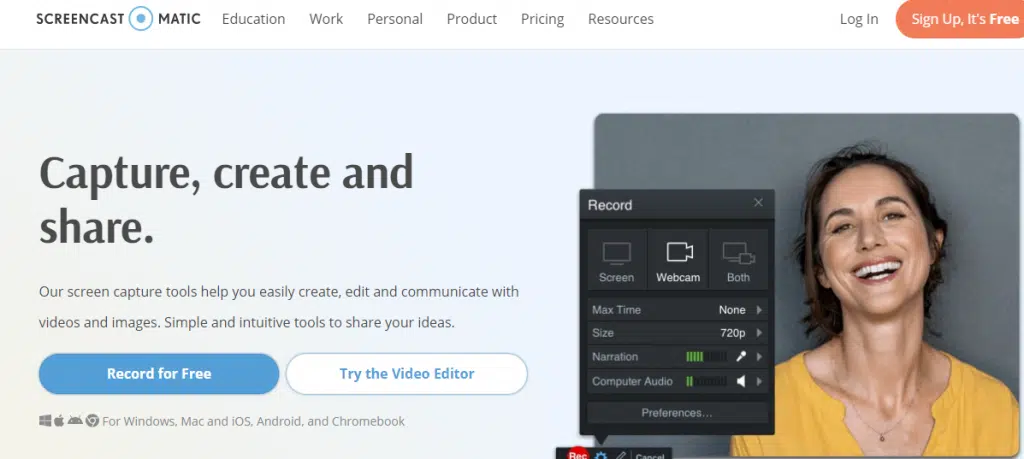
Screencast-O-Matic is an easy-to-use, web-based screen recorder and is very popular as a free online screen recorder. This program offers only 15 minutes of free recording, and you have to update the program to record the sound from the computer system.
However, it is still a multifunctional screen recorder and is available on Chromebook, Mac, and Windows.
Before using it, you need to download a launcher to record your screen. However, it’s very light. You don’t need to worry about your computer space.
This free online screen recorder is capable of supporting screen and webcam recordings. It also assists in the design and zoom of video files. Many editing tools come with the Pro version for editing and customizing videos.
3. Screenapp.io
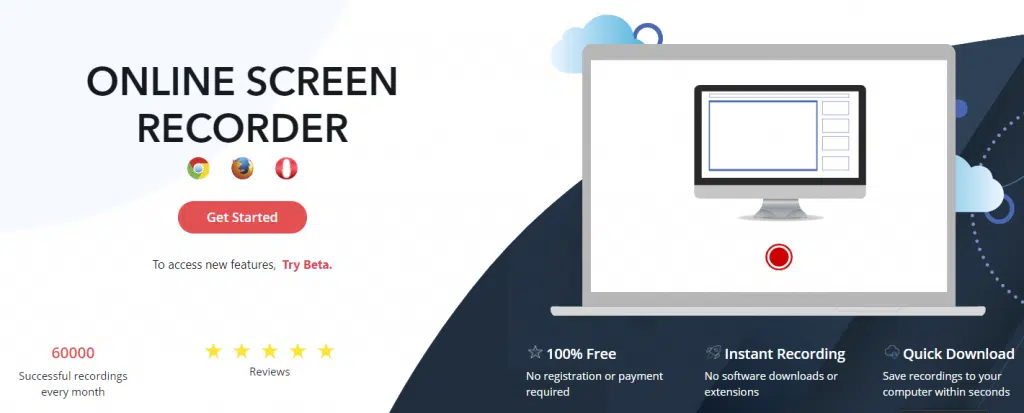
Screenapp.io is screen recording in its purest form. It only serves to record the screen, with no camera. And you can record a single audio source, the screen, or the mic. You hit a button, and you’re recording. It is very simple and intuitive.
This website allows you to record your screen without using any extension or external application. With just a few clicks, you will be recording your entire screen, tab, or window.
Before starting the recording, the site asks which sound you want to capture, from the browser itself, microphone, or without audio. In addition, in the end, it allows you to cut the video in the part you want and provides a direct download link.
4. ScreenToaster
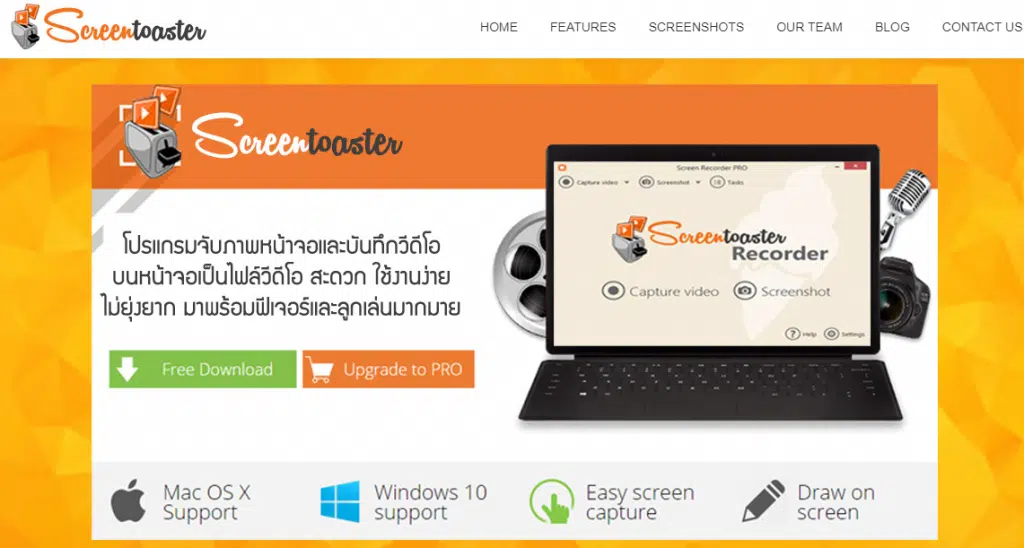
ScreenToaster is a free online service that records videos of everything that happens on your computer’s desktop and your camera with audio and everything.
In this way, you can easily create screencasts, tutorials, demos, game performance displays, and other videos. This is without the need to download, install and use any programs.
You can store your videos in your own ScreenToaster account, displaying them to all users of the service or keeping them private. It is also possible to post them on personal pages using HTML code or send them by email.
ScreenToaster is an amazing tool as well. The registration process is easy, and the recording is also simple. The only problem we detected was a failure during the process of converting the video to AVI format.
All other features – audio recording and webcam recording – worked very well and quickly. That is, it is an excellent service for any user who does not like programs of this kind.
However, this tool is in Thai. You need to use Google Translate to translate it into English when using it if you don’t know Thai.
5. AceThinker
AceThinker is a very good screen recording software. With it, you can easily record and save any activity that occurs on the computer screen.
Different screen recording modes are provided, and the screen broadcast can be carried out in full screen or in a specific area around the mouse cursor to meet your needs. If you are starting for the first time, you need to install the plugin.
You can record a screen with audio at the same time, and you can even include webcam video in the recording.
Use this screen capture program to set up a plan in advance and make it automatically record the screen. Just set the start time and recording duration to create a scheduled task, and you can record your computer screen even when you are away.
With this screen recorder, you can easily record live streaming videos from popular streaming sites such as BBC, YouTube, Twitch, etc. You can also set up tasks to capture web meetings for later viewing.
6. Clipchamp
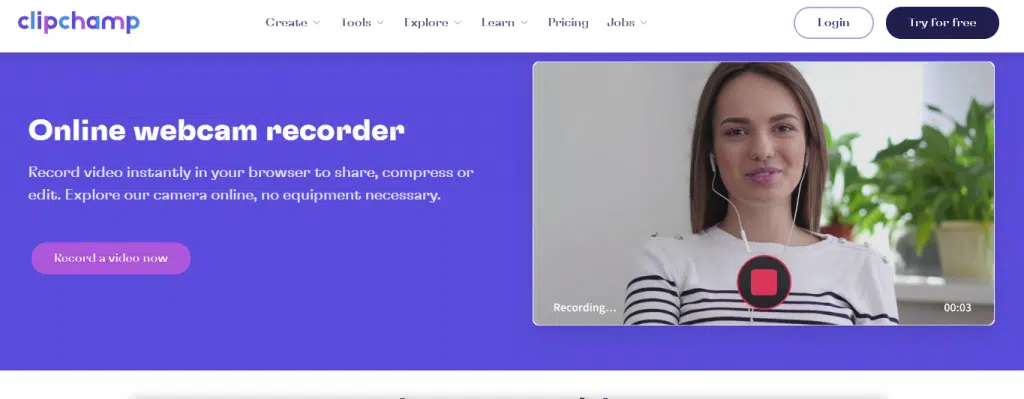
Clipchamp online web cam recorder is an online professional video production tool. It provides powerful video editing functions to create videos based on your recording content.
It can record videos from webcams and screens. After recording videos online, it can Add your recordings to the timeline editor, where you can rotate, split, copy and paste the recordings, add text and transitions, apply filters, set overlay effects, speed up/slow down, and record files. You can record audio to create music videos.
Not only can the video recording be downloaded to the computer in MP4 format, but it enables you to export your video as an animated GIF image.
Before using it, you should register for a free account. To export video recording files in 720p HD or 1080p HD quality, you should upgrade your plan. Otherwise, you can only save large-size video recordings as 480p.
7. Apowersoft
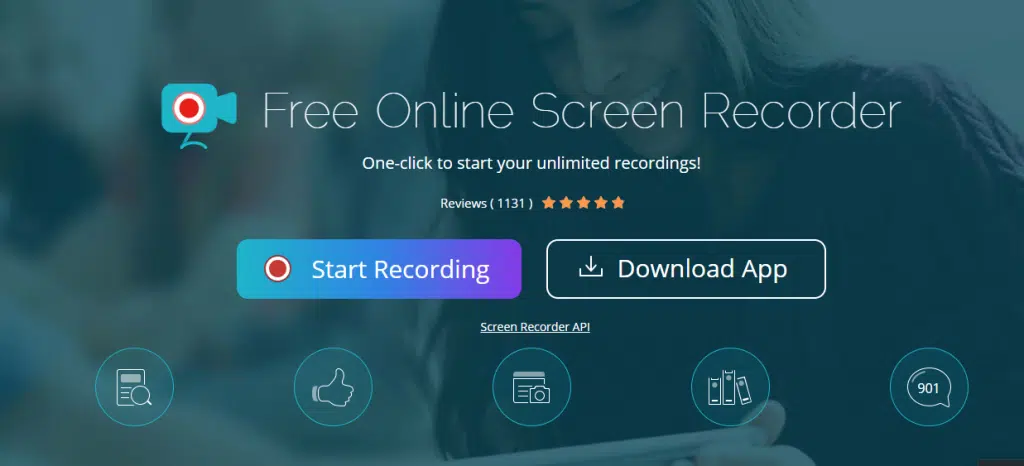
Apowersoft offers a free screen recorder based in Hong Kong. It makes recordings online, but it needs the download the launcher before you start recording.
Once you install the launcher on your PC or computer, you just have to click “Start recording” to activate the online recorder and customize the recording mode and region to start creating your video. You can save the video on a local disk or upload it directly to the cloud.
It is one of the most prevalent recording tools. It records all kinds of activities on the screen, including live video, self-demonstrations, and live chat.
Apowersoft allows you to record your screen by adding a watermark in the free online version. It enables you to capture the whole screen. Besides, you can add graphics, arrows, and text to your video, as well as crop it once recorded.
8. Screencastify
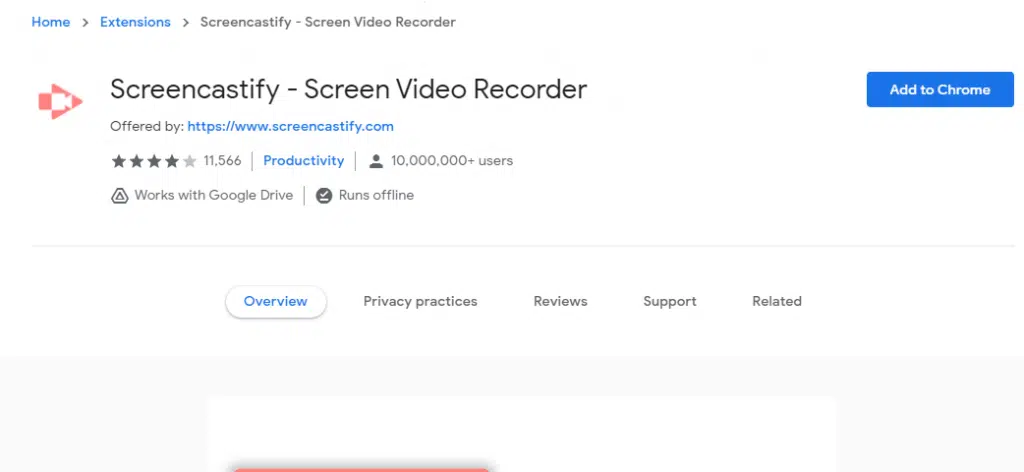
If you use the Google Chrome browser, a good option is Screencastify. This extension can also record all kinds of activity within a browser tab and outside the browser.
You can even use Screencastify on Chromebooks and save the recorded videos to your hard drive and post them directly to YouTube or upload your video to Google Drive with a quick click.
The free version of Screencastify gives you the ability to record videos of up to 15 minutes, which in many cases is just enough.
9. Screen Recorder
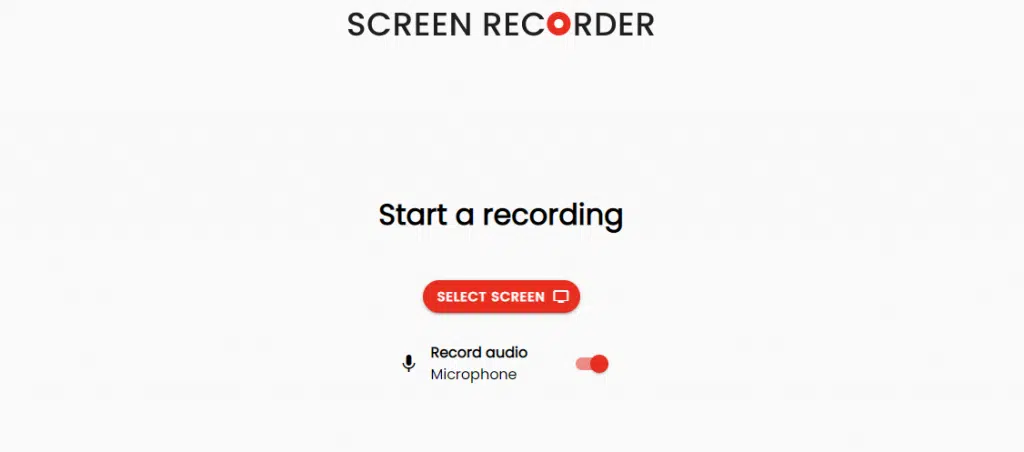
The Screen Recorder is more of an online service that allows you to record the desktop on your computer from the browser.
As with the other options mentioned, you can record the entire screen, a program window, or a browser tab, in addition to recording audio from the microphone.
10. Screen Capture
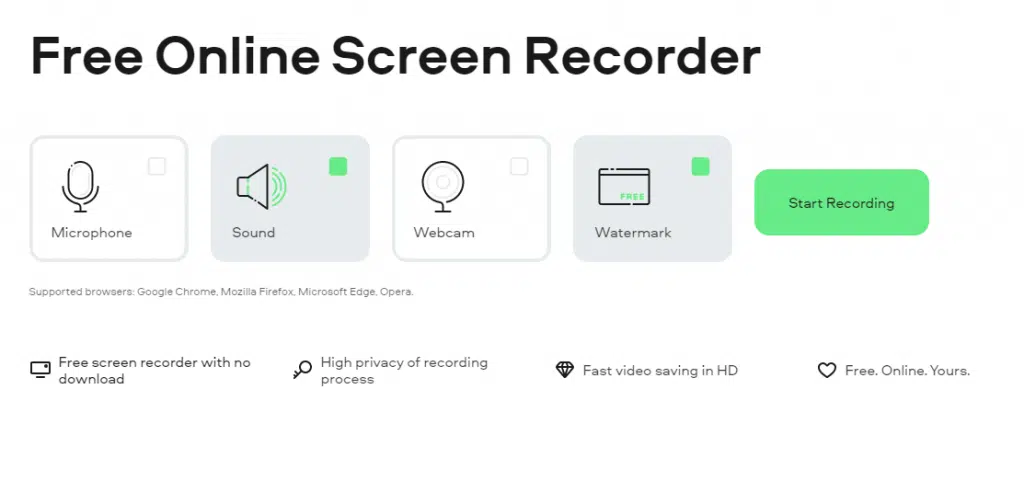
Screen Capture is another site that you can use to record your computer screen without installing any program or extension on your computer.
You can record the entire screen, one, the program window, or a browser tab, and you can also record a webcam, microphone, and computer sound.
Conclusion
People from the whole world can communicate through video. To make a video presentation, you need an online video recorder.
This article lists the best 10 best online screen recorder tools. With them, you can record videos from any screen of a webcam, desktop, or computer. Compared with desktop software, you don’t need to download any software to start it.
If you think that recording videos of your computer’s activities is complicated, RecordCast is there to change your mind.
Because it is online, it is compatible with Windows, and Vista, in addition to Mac OS X, and Linux.
The service has been optimized to run on almost all the browsers such as Firefox, Internet Explorer, Google Chrome, Opera, Safari, etc.







Hey,
My Current Scenario while I am searching for my personal purpose here you declared about the tools I don’t know how to thank you. It would be really useful for them. best regards it’s premium or free.
Thanks for your valuable feedback. You can try their both service. Free plans are enough for any beginners.